Copy the Code. Keep the Context Attached.
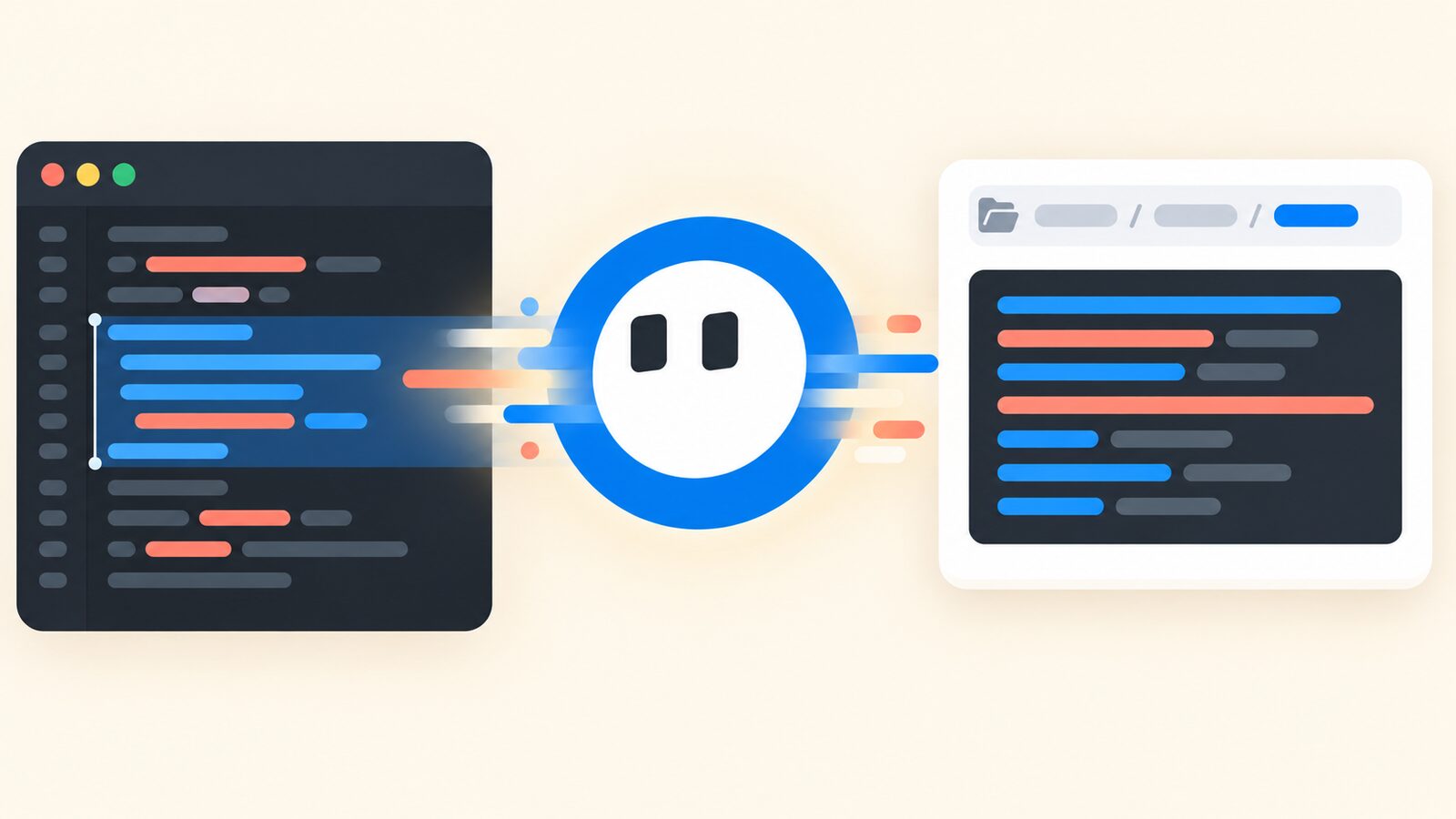
I kept doing the same tiny job badly.
Select code. Copy it. Open the destination. Add a Markdown fence. Remember the language. Add the file path because the recipient cannot read my mind. Discover that the code itself contains triple backticks. Repair the fence. Repeat.
It was never difficult enough to schedule, only frequent enough to be annoying (the natural habitat of a VS Code extension).
So I built Copy Code as Snippet.
One shortcut, complete snippet
Select code or leave the selection empty to use the whole file. Then run Copy Code as Snippet from the context menu, Command Palette, or the default shortcut:
macOS: Cmd+Alt+C
Windows/Linux: Ctrl+Alt+C
The extension copies Markdown, HTML, or plain text and detects the language from the file. Inside a workspace, it can include a workspace-relative path instead of an absolute machine path.
Set copy-code-as-snippet.markdown.pathPlacement to header when you want a standard Markdown result with the path outside the fence:
### File: src/extension.ts

```typescript
export function activate() {
  // ...
}
```
That path is not decoration. In documentation, code review, chat, and AI prompts, a snippet without its source location becomes an orphan surprisingly quickly.
The fence should survive the code inside it
Copying Markdown that already contains triple backticks creates a fun little recursion problem. The default fence strategy scans the copied content and grows the outer backtick fence beyond the longest internal run.
You can also force tildes or retain the legacy triple-backtick behavior. The point is not to choose everyone's Markdown taste. It is to avoid producing a snippet that closes itself halfway through and walks away.
AI mode adds only the context an assistant needs
The opt-in AI mode produces one heading containing file, language, and selection-range metadata, followed by a language-only code fence. It keeps that shape independent of the normal Markdown path setting.
Large files get their own guard. When enabled, a configurable threshold prompts you to copy the whole file or a head/tail sample. The sample records how many lines were omitted.
This is useful for an AI assistant, but it is equally useful for a human reviewer. “Here are the first and last ten lines of a 10,000-line generated file” is a much clearer message than silently truncating the clipboard and hoping nobody notices.
Paths outside the workspace deserve extra care
For workspace files, relative paths are the natural context. Outside a workspace, the extension defaults to the basename rather than the full absolute path.
That prevents a casual snippet from carrying parent directory names into a public issue or chat. If the absolute location is genuinely necessary, the setting can opt back into it.
The extension is not a paste service and sends nothing anywhere. It prepares the clipboard; you decide where the snippet goes.
Small tools should remove repeated ceremony
Copy Code as Snippet does not generate code, explain it, or decide whether it is safe to share. It handles the mechanical wrapper around code you already selected.
That narrowness is why it stays useful. The extension remembers the syntax fence, file context, language, range, path policy, and large-file shape so I can think about the message rather than assemble its packaging again.
The next time a code selection needs to travel with its language and source path, Copy Code as Snippet can package it before the clipboard leaves VS Code. Copying code should not require a tiny publishing workflow every time.
Get the next post.
If you made it to the end, meet the next post in your inbox or RSS reader.